Browse play modes
Browse & Play modes
This tab covers the three modes that operate on the complete AD graph. They give the operator a faithful view of the AD environment and a defense game grounded in the four heuristic attack families.
Layout convention
Browse and Play visualizations use a concentric layout: the Domain node sits at the centre, surrounded by OUs, then Groups, then leaf entities (Computers, Users, Containers). This layout matches the structural hierarchy of AD and is the appropriate view when the operator's question is "where in my organization are the attacks happening", as opposed to "what is the path from A to B".
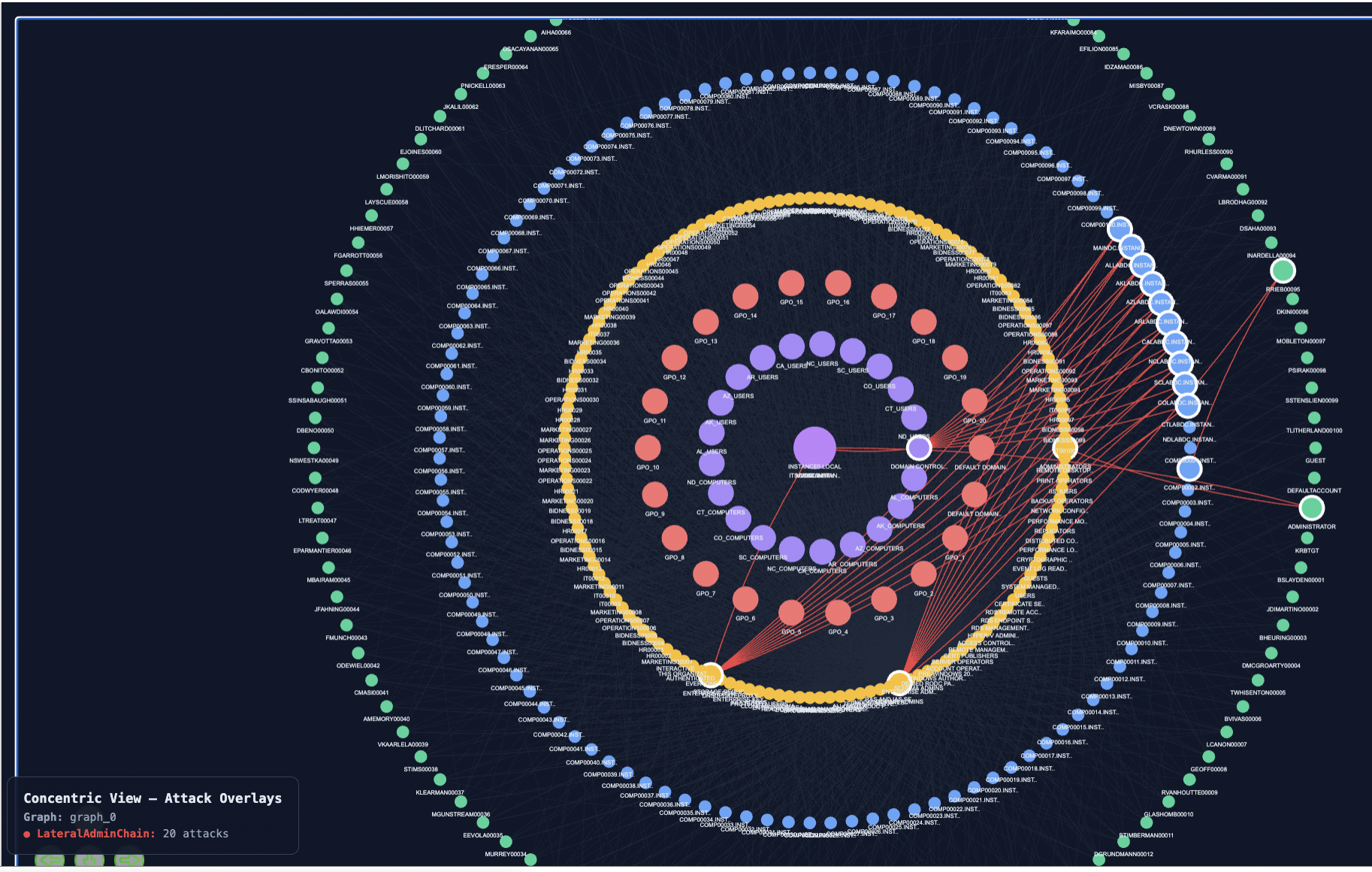
Mode 5 : Browse a single generated attack
Purpose
Inspect one specific attack from one specific family on the complete graph. Useful for forensic understanding of a generated attack scenario in its full structural context.
How to use
-
Select a family from the Browse families dropdown.
-
Set Browse mode to "single".
-
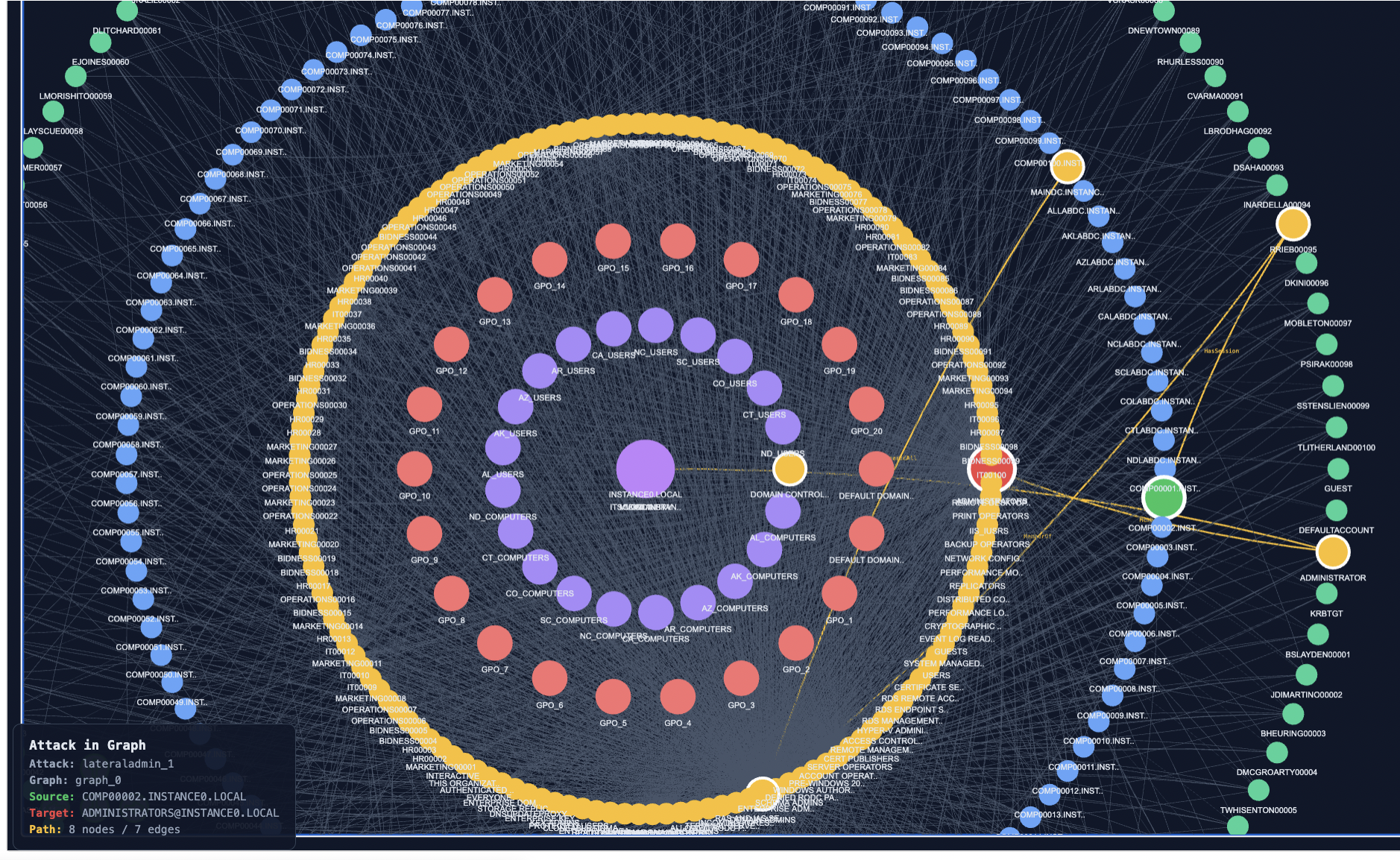
Select an attack from the Browse attack dropdown. Each entry is labelled with the attack's identifier and the number of nodes on its path.
-
Click Visualize.
The chosen attack's path is overlaid on the concentric layout: the source node is enlarged red, the target is enlarged green, intermediates are highlighted, and edges along the path are coloured and labelled with their AD relation type. All other nodes remain visible but dimmed.
Mode 6 : Browse multiple attacks overlaid
Purpose
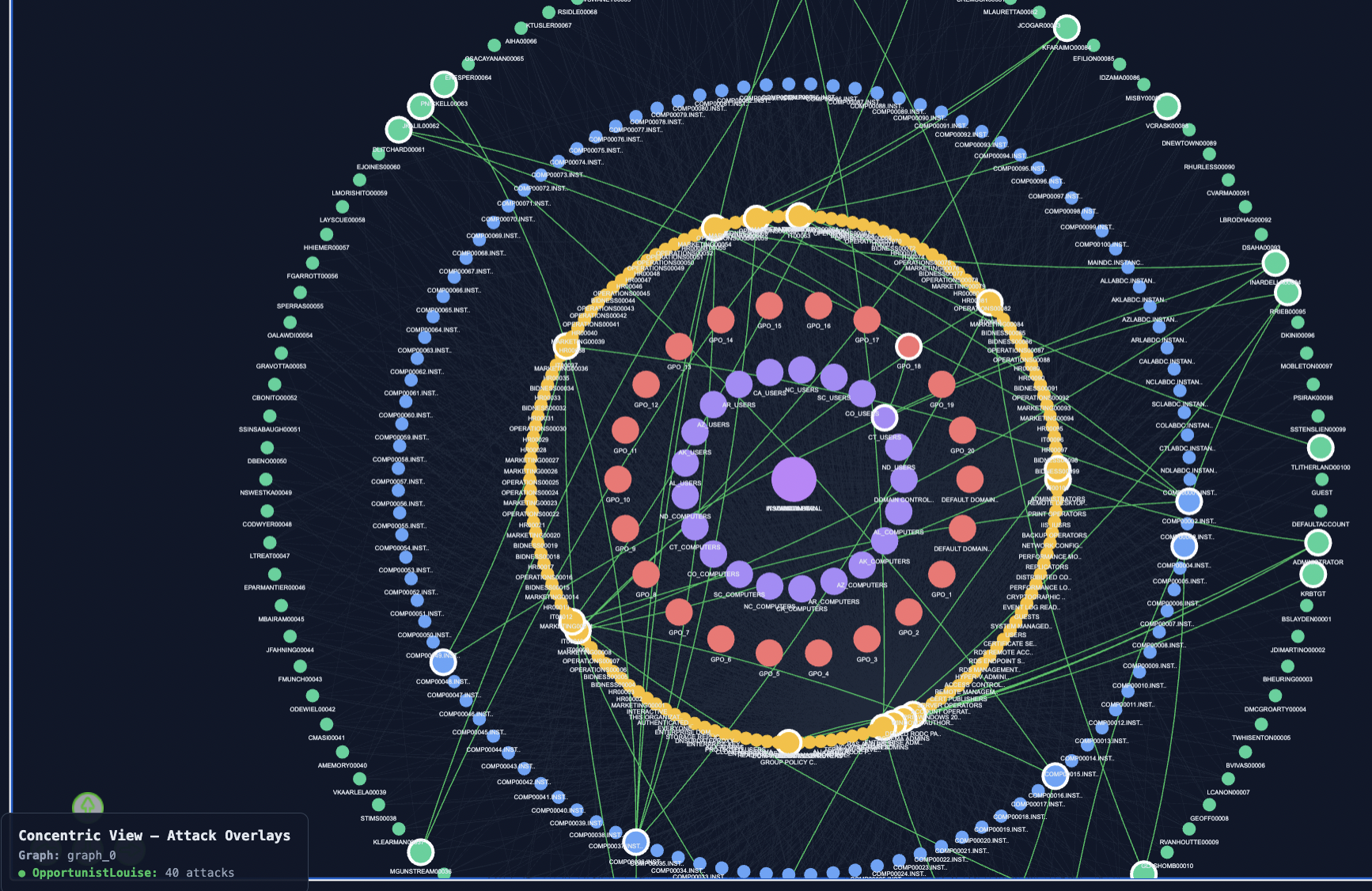
Visualize many generated attacks across multiple families simultaneously, colour-coded by family. Useful for surveying the attack landscape at a glance and identifying nodes that are heavily traversed across families.
How to use
-
Select one or more families from the Browse families list.
-
Set Browse mode to "all".
-
Set Max-per-family to cap the number of attacks rendered per family (1–50). Capping is essential for families that produce thousands of attacks (typical for OpportunistLouise).
-
Click Visualize.
Each family's attacks are rendered in that family's colour (LateralAdminChain red, ShadowAdmin purple, KerberosAdjusted orange, OpportunistLouise green). Edges traversed by multiple families show the colour of one family; the legend in the bottom-left lists per-family counts.
What to observe
Nodes that lie on attack paths from multiple families are higher-value defense candidates than nodes that lie only on paths from a single family. The legend at the bottom-left shows the count per family rendered.
Mode 7 : Defense game
Purpose
Score a chosen defense allocation against the full set of generated attacks (all four families). This is the empirical counterpart to the Defense simulator: instead of measuring blocking under the framework's idealized random-walk model, it measures blocking against the four heuristic adversaries.
How to use
-
Select one or more families from the Play families list.
-
Set Max-per-family.
-
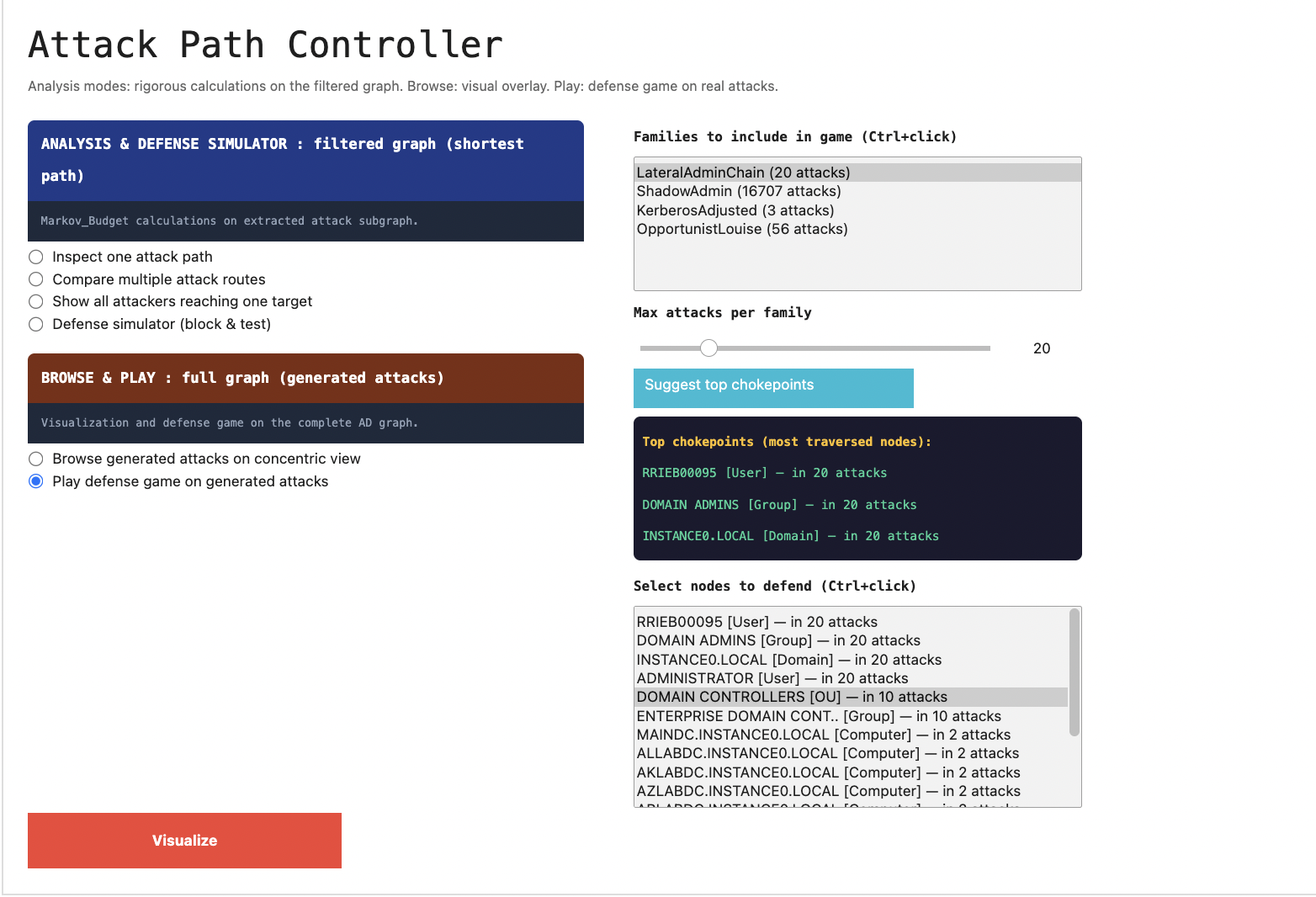
Click "Suggest top 3". This counts the most-traversed intermediate nodes across the selected families' attacks (using
Counteron intermediate node lists) and populates the defense list with the top candidates, sorted by frequency. The top three are pre-suggested in the panel. -
Select one or more nodes to defend (Ctrl+click or Cmd+click for multi-selection).
-
Click Visualize.
Output
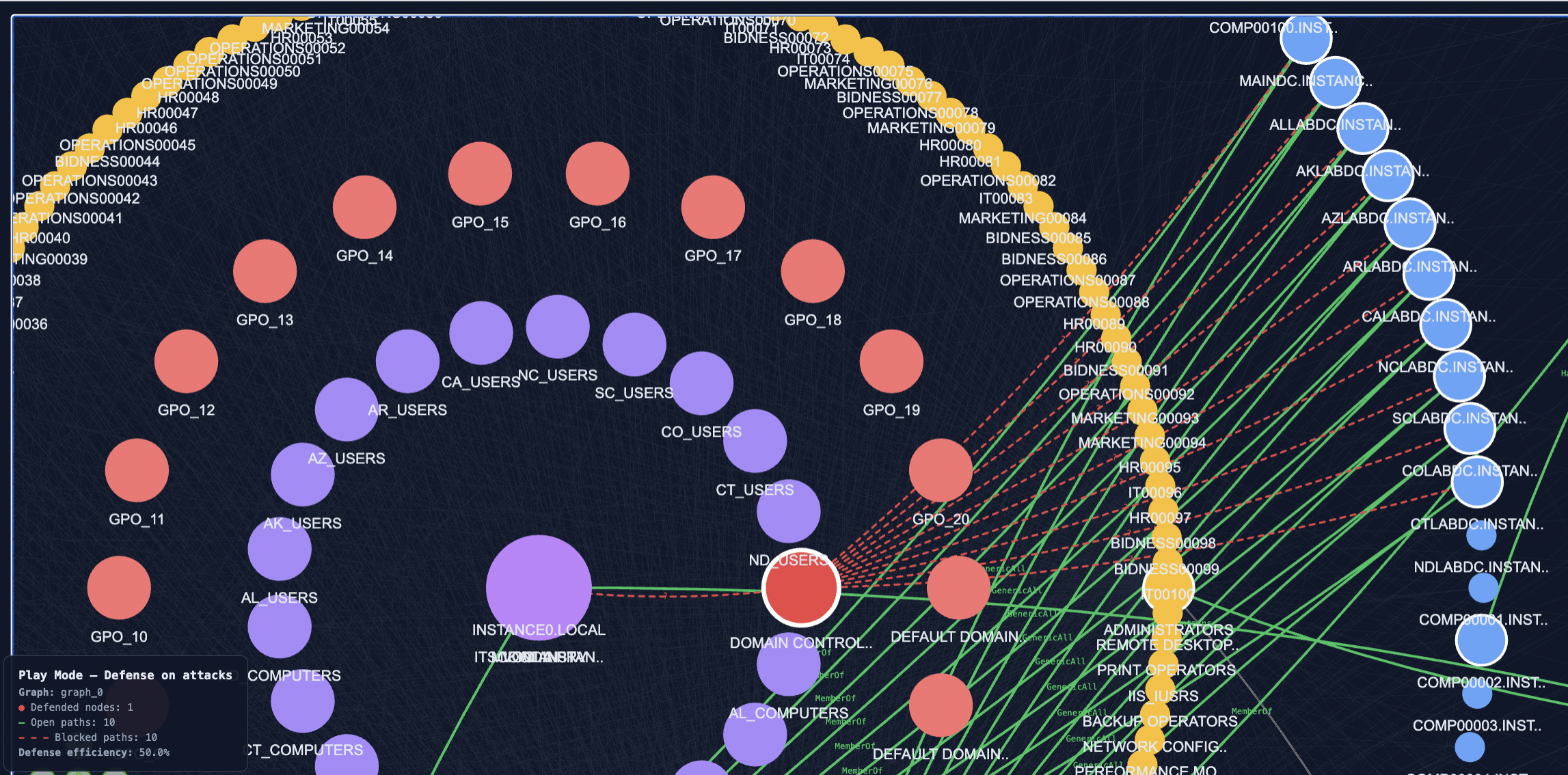
The visualization renders the concentric view with: - Defended nodes ringed and highlighted.
-
Open attacks (still reach their target despite the defense) drawn in green solid edges.
-
Blocked attacks (intercepted by at least one defended node on an intermediate hop) drawn in red dashed edges.
-
A printed summary per family:
<family>: N/M blocked (XX.X%)and an overall total. -
A legend in the bottom-left with the open/blocked counts and the global defense efficiency.
Why two defense modes?
The Defense simulator (Analysis Mode 4) and the Defense game (Play, Mode 7) answer two different questions:
-
Defense simulator (filtered subgraph, idealized adversary): how does this allocation perform under the framework's random-walk model? This is the question the optimization itself answers; the simulator lets the operator manually explore the solution space.
-
Defense game (complete graph, heuristic adversaries): how does this allocation perform against four specific heuristic attackers? This tests the robustness of the framework's recommendations against attacker behaviours not captured by the random-walk model.
A defense allocation that scores well in both is robust. A defense that scores well only in the simulator may be over-fitted to the random-walk model. A defense that scores well only in the game may be ad-hoc and miss low-probability paths the framework would catch.
End-to-end usage example
The intended workflow is:
-
Open the controller (
vp.launch_controller(gd0, graph_data, attacks_dict)). -
Browse mode 5 or 6 : survey the generated attacks on the complete graph to build intuition about where adversaries are operating.
-
Analysis mode 2 : pick a critical attacker/target pair from the survey and overlay its k shortest paths to identify visible chokepoints.
-
Analysis mode 4 : let "Analyze chokepoints" propose a defense; inspect the suggested nodes' tooltips to see their Monte Carlo weights; visualize the simulator output.
-
Play mode 7 : apply the same defense to the full attack set on the complete graph and read the per-family blocking percentages.
-
Iterate: if a family has low blocking percentage, return to Analysis with that family's typical source/target, find an additional chokepoint, add it to the defense.
The Explorer is designed to make this iteration fast: a defense allocation can be tested against the framework's model and against the heuristic attackers in under a minute, end-to-end.